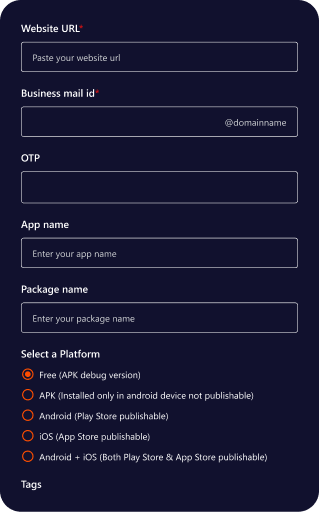
How to Verify Your Domain
A security step to prove ownership of the website domain.
Why it’s required
- Prevents:
- Fake apps
- Brand misuse
- Unauthorized app creation
- Ensures only the domain owner can create apps for that website.
This process involves adding a TXT record to your domain’s DNS settings.
Step 1: Open Domain Verification Panel
- Navigate to your App Overview page.
- Locate the “Website URL” section.
- Click the “Domain Verification” button (it will show “Domain not verified” if not yet verified)
- The Domain Verification panel will open on the right side of your screen.
- In the Domain Verification panel, you will see a verification token displayed under the “Value” field.
- The token will look like: verify-quikapp=abc123def456…
- Click the “Copy” button next to the token to copy it to your clipboard.
- Log into your domain provider’s website (GoDaddy, Namecheap, Cloudflare, Google Domains, Hostinger, etc.).
- Navigate to the DNS Management or DNS Records section. This is usually found under:
- Domain Settings
- DNS Management
- DNS Records
- Advanced DNS
- Click “Add Record” or “Create Record” to add a new DNS record.
- Select “TXT” as the record type from the dropdown menu.
| Field Type | Name / Host | Value (Points to) | TTL |
|---|---|---|---|
TXT |
@ |
verify-quikapp=[string-from-qiukapp] |
300 (or) default |
- Enter the following information:
- Name/Host: Enter “@” (without quotes) or leave this field blank for root domain verification.
- Value: Paste the verification token you copied earlier (the entire token starting with verify-quikapp=).
- TTL: Set to 300 seconds (or leave as default if 300 is not available).
- Save the record. The record may take a few moments to be created.
Step 5: Wait for DNS Propagation
- DNS changes can take 5-60 minutes to propagate globally.
- Wait at least 5-10 minutes after adding the TXT record before attempting verification.
- Some DNS providers may take longer, so be patient if verification doesn’t work immediately.
Step 6: Verify Your Domain
- Return to the Domain Verification panel in your app.
- Click the “Verify Now” button. The system will check your domain’s DNS records for the verification token.
- If verification is successful:
- The status will change to “Domain Verified”
- The button will turn green.
- You will see a success confirmation.
- If verification fails:
- A warning message will appear.
- Wait a few more minutes, try refreshing and try again.
- Double-check that the TXT record was added correctly.
Common Domain Providers
Domain verification is essential for verifying ownership of your website domain. This process involves adding a TXT record to your domain’s DNS settings. apibus leo.
| Provider | Steps to Access DNS Records |
|---|---|
GoDaddy |
Log in → My Products → DNS → Records → Add → Select TXT → Enter details |
Hostinger |
Log in → Domains → Manage → DNS/Nameservers → DNS Records → Add Record → Select TXT → Enter details |
Namecheap |
Domain List → Manage → Advanced DNS → Add New Record → Select TXT → Enter details |
Cloudflare |
Select domain → DNS → Records → Add record → Type: TXT → Enter details |
Google Domains |
Hosted zones → Select domain → Create record → Record type: TXT → Enter details |
Once verified
- Domain becomes trusted.
- You can proceed with app creation and store builds.
- Your website becomes protected under QuikApp, no other user can create the same website.
If not verified
- App build blocked.
- Store submission is not allowed.