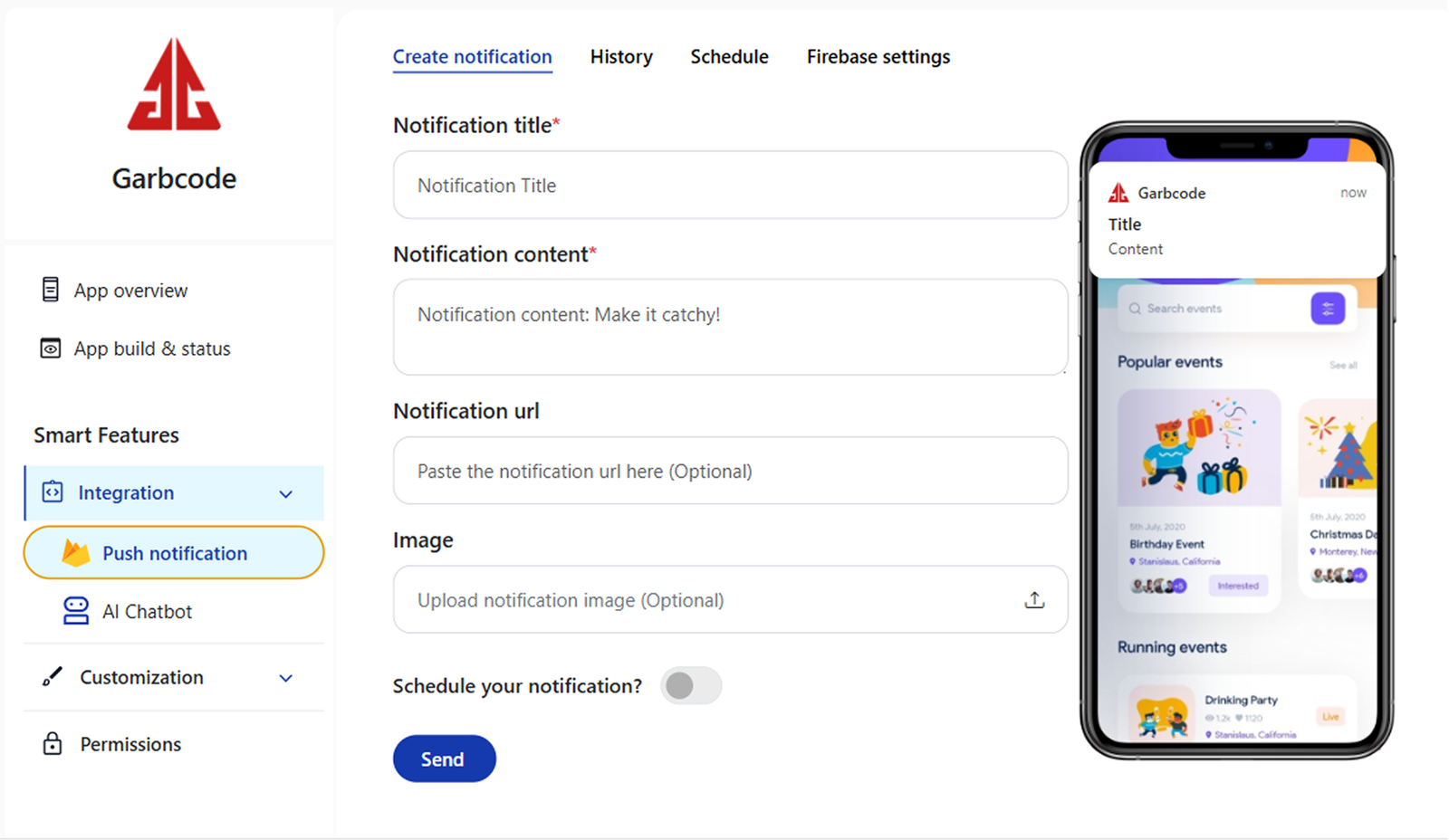
How to send / create push notification
QuikApp allows you to send instant or scheduled push notifications to your app users on Android, iOS, or both platforms.
Configuration Guides (Required Before Sending Notifications)
Before sending notifications, configure push services:
Follow the steps below to create and send notifications easily.
Step-by-Step Guide
Step 1: Open Push Notifications
- Navigate to App overview.
- From the left-side menu, click Push Notification.
- Open the Create Notification tab.
- Choose the app from the dropdown list for which you want to send the notification.
- Notification Title
- Enter the title that will appear on the user’s device.
- Notification Content
- Enter the message body of the notification.
- Notification Image (Optional)
- Upload an image to make your notification more engaging.
Step 4: Select Target Devices
Choose where you want to send the notification:
Choose where you want to send the notification:
- Android
- iOS
- Both Android & iOS
- Click Send Now to deliver the notification immediately.
- Enable the Schedule Notification option.
- Select:
- Date (DD / MM / YYYY)
- Time (Hours / Minutes / AM or PM)
Step 6: View Scheduled Notifications
- All scheduled notifications can be viewed under the Schedule tab.
- You can monitor, edit, or cancel scheduled notifications from there.
Important Notes
- Push notifications will work only after Firebase (Android & iOS) setup is completed.
- Make sure users have enabled notification permissions on their devices.
- Images in notifications are optional but recommended for higher engagement.